> ## Documentation Index
> Fetch the complete documentation index at: https://magicpatterns.mintlify.site/docs/llms.txt
> Use this file to discover all available pages before exploring further.
# Inline Comments
> Leave feedback directly on specific elements in a design
Inline comments let you leave feedback directly on specific elements in a design. This makes reviews faster, clearer, and easier to track across teammates and iterations.
## Get your share link
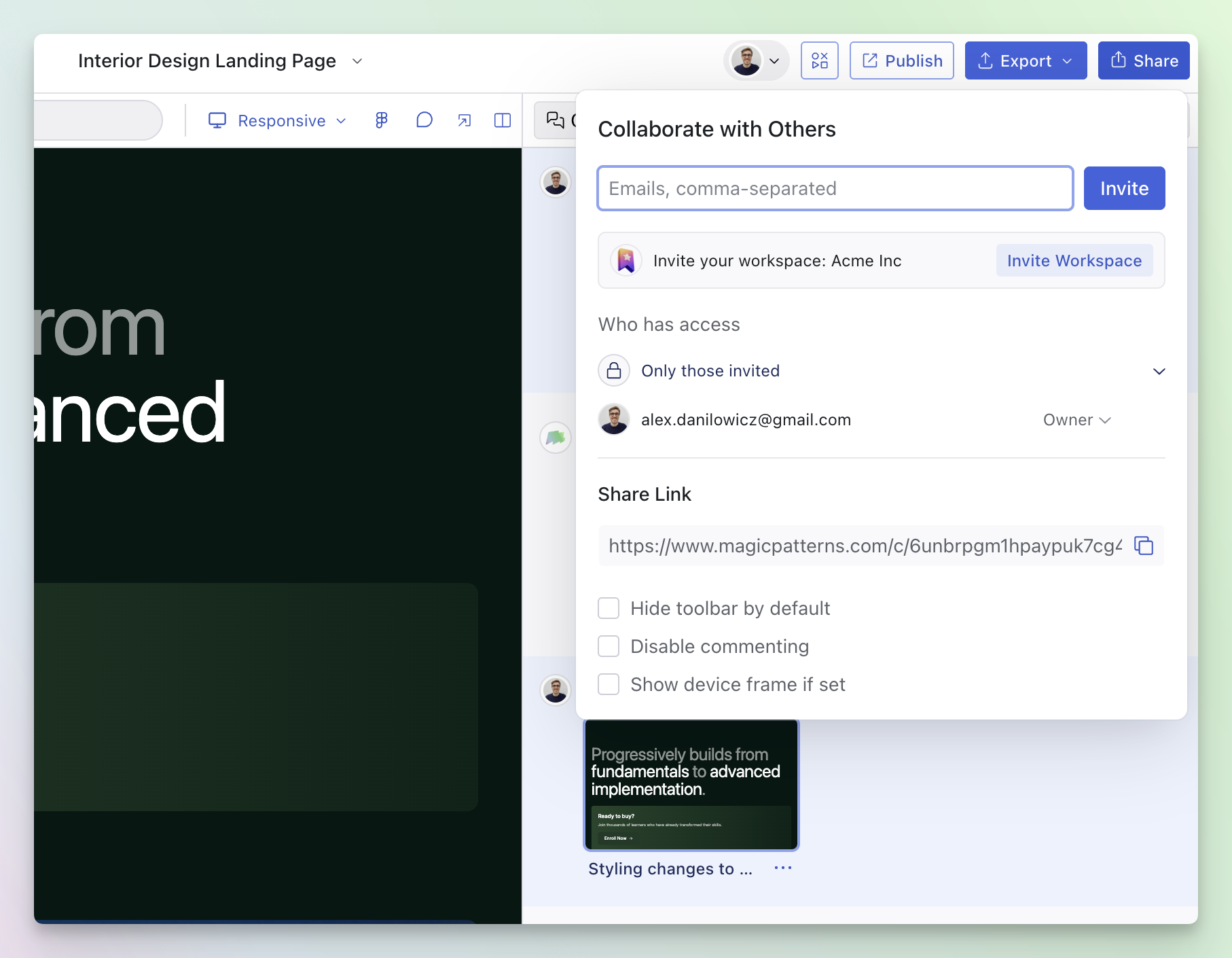
To collect feedback, start by clicking on the Share button in the editor navbar.
In the editor, click the Share button.
Anyone with the preview link can view the design and leave comments (if they
have access).
## Enter Comment Mode
### From the editor
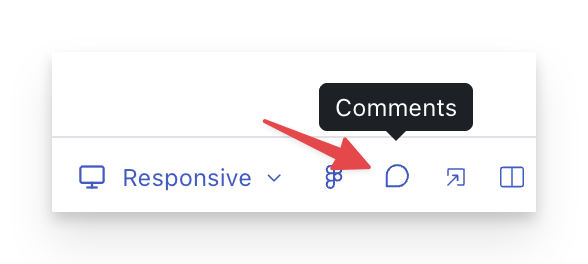
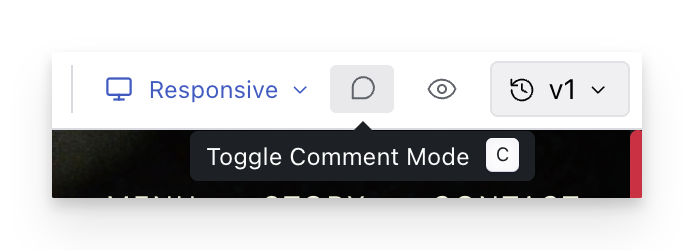
* Click the **comment** icon in the editor navbar to toggle Comment Mode.
### From the share link
* Open the preview link and click the **comment** icon to toggle Comment Mode.
You can quickly toggle Comment Mode with C. You can also
hide/show comment indicators with H.
## Add an inline comment
Once Comment Mode is enabled:
Tap on the specific UI element you want to comment on.
Add context, describe the issue, and include a suggestion if you can.
Your comment appears as an indicator on the design and in the comments
panel.
Comments are tied to elements in the design. If you resize
the screen and elements move, your comments stay anchored to the right
elements.
## Commmon workflows:
* Async design reviews: Share a preview link, ask reviewers to leave comments directly on the relevant UI, and iterate without long meetings.
* Collecting feedback: Product, engineering, and stakeholders can comment on exactly what they mean—even if they're not editing the design.
* Bug or polish tracking: Use comments as a lightweight checklist while you refine the UI (resolve items as you address them).
* Version-aware feedback: Comments can be grouped by design version, so you can understand what feedback applies to which iteration.
## Troubleshooting
If you don't see comment indicators in the editor, make sure **comment mode**
is active (toggle it in the toolbar).
## Video Guide
This topic is covered in our video lesson [Team Workflows and Sharing](/documentation/guide/team-workflows-and-sharing).
 ## Get your share link
To collect feedback, start by clicking on the Share button in the editor navbar.
## Get your share link
To collect feedback, start by clicking on the Share button in the editor navbar.
 ### From the share link
* Open the preview link and click the **comment** icon to toggle Comment Mode.
### From the share link
* Open the preview link and click the **comment** icon to toggle Comment Mode.
 ## Commmon workflows:
* Async design reviews: Share a preview link, ask reviewers to leave comments directly on the relevant UI, and iterate without long meetings.
* Collecting feedback: Product, engineering, and stakeholders can comment on exactly what they mean—even if they're not editing the design.
* Bug or polish tracking: Use comments as a lightweight checklist while you refine the UI (resolve items as you address them).
* Version-aware feedback: Comments can be grouped by design version, so you can understand what feedback applies to which iteration.
## Troubleshooting
## Commmon workflows:
* Async design reviews: Share a preview link, ask reviewers to leave comments directly on the relevant UI, and iterate without long meetings.
* Collecting feedback: Product, engineering, and stakeholders can comment on exactly what they mean—even if they're not editing the design.
* Bug or polish tracking: Use comments as a lightweight checklist while you refine the UI (resolve items as you address them).
* Version-aware feedback: Comments can be grouped by design version, so you can understand what feedback applies to which iteration.
## Troubleshooting