> ## Documentation Index
> Fetch the complete documentation index at: https://magicpatterns.mintlify.site/docs/llms.txt
> Use this file to discover all available pages before exploring further.
# Sharing Designs
> How to share Magic Patterns designs
There are two ways to share your designs:
1. [Share](#share) — Control who has access, get comments on your design, collaborate with teammates
2. [Publish](#publish) — The pure website without the Magic Patterns toolbar, mostly commonly used for use cases that require actual control of what's "live"
## Share
**Best practice**: use the share link by default! The share link can be made
public by clicking on "Who Has Access" > "Anyone with Link"
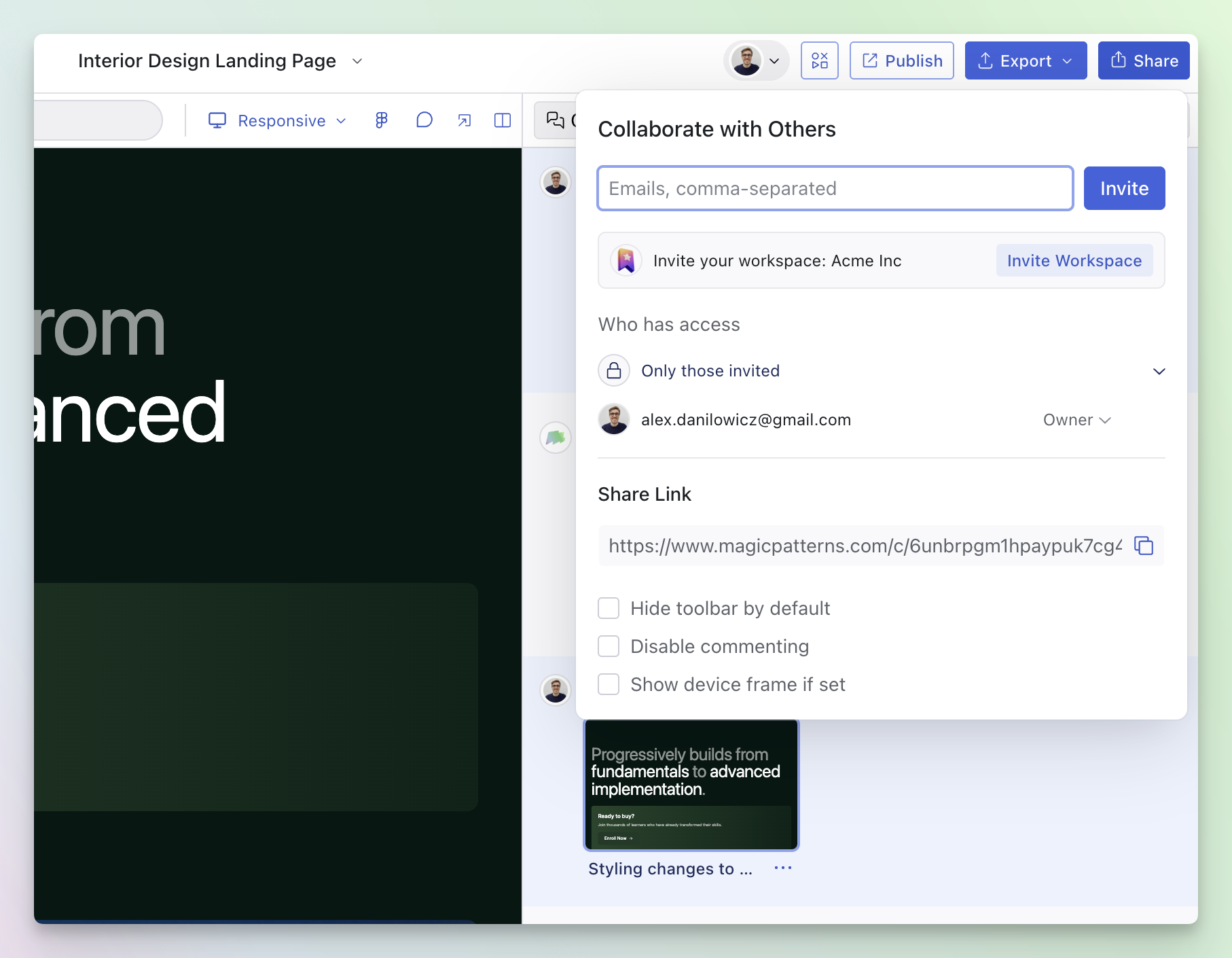
Click on the Share button in the editor navbar when you want to control who has access, collaborate with teammates or get feedback. The share link supports [inline commenting](/documentation/collaboration/inline-comments).
To share, click **Share** in the editor navbar. The share panel lets you:
* Control who has access to the design
* Share the link with teammates
* Enable [inline commenting](/documentation/collaboration/inline-comments)
## Publish
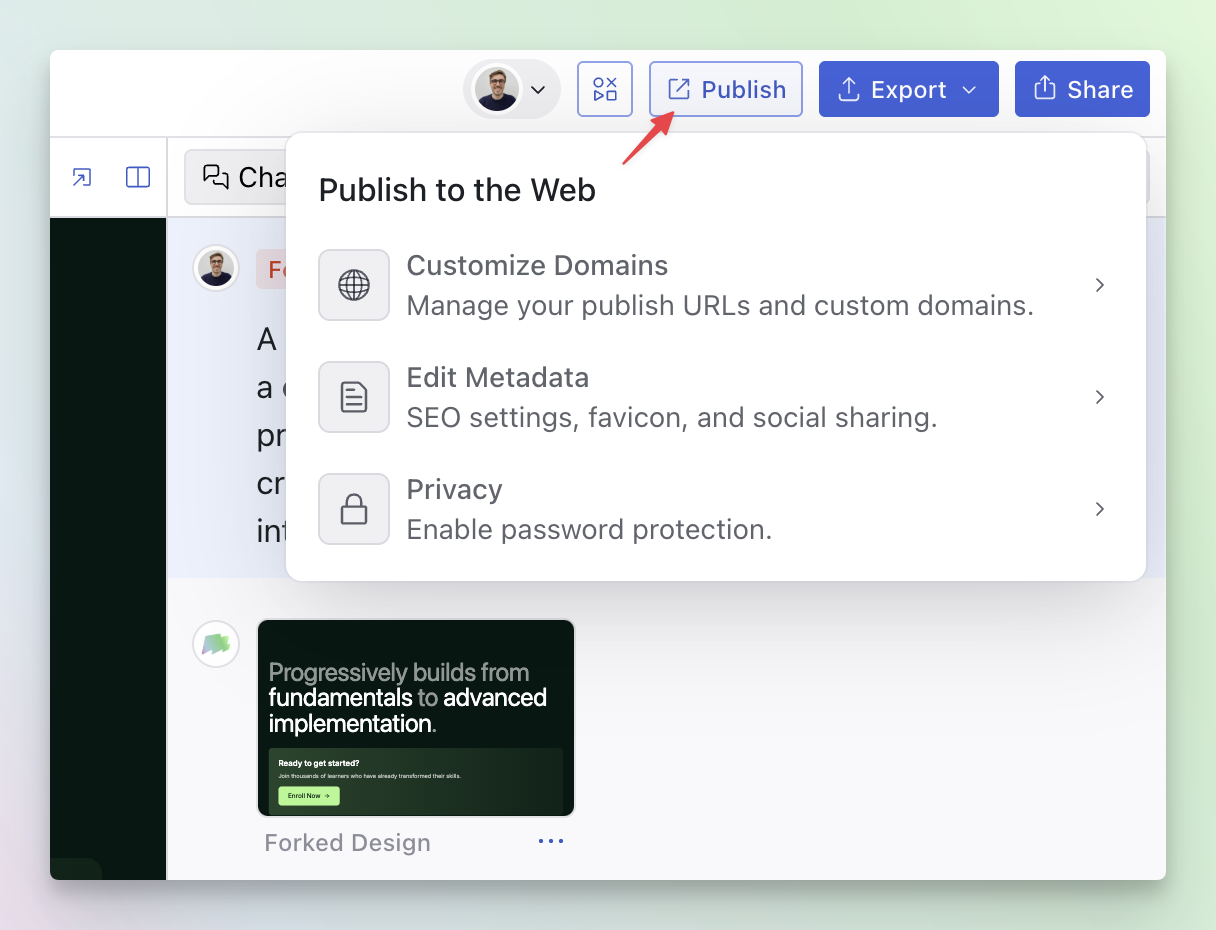
Use Publish when you want to control the version you are sharing. Publishing is often used in conjunction with [using a custom publish URL](/documentation/publishing/publish-url) or [hosting on a custom domain](/documentation/get-started/custom-domain).
Click **Publish** in the editor navbar. Here you can configure metadata
(favicon, social preview) and enable password protection.
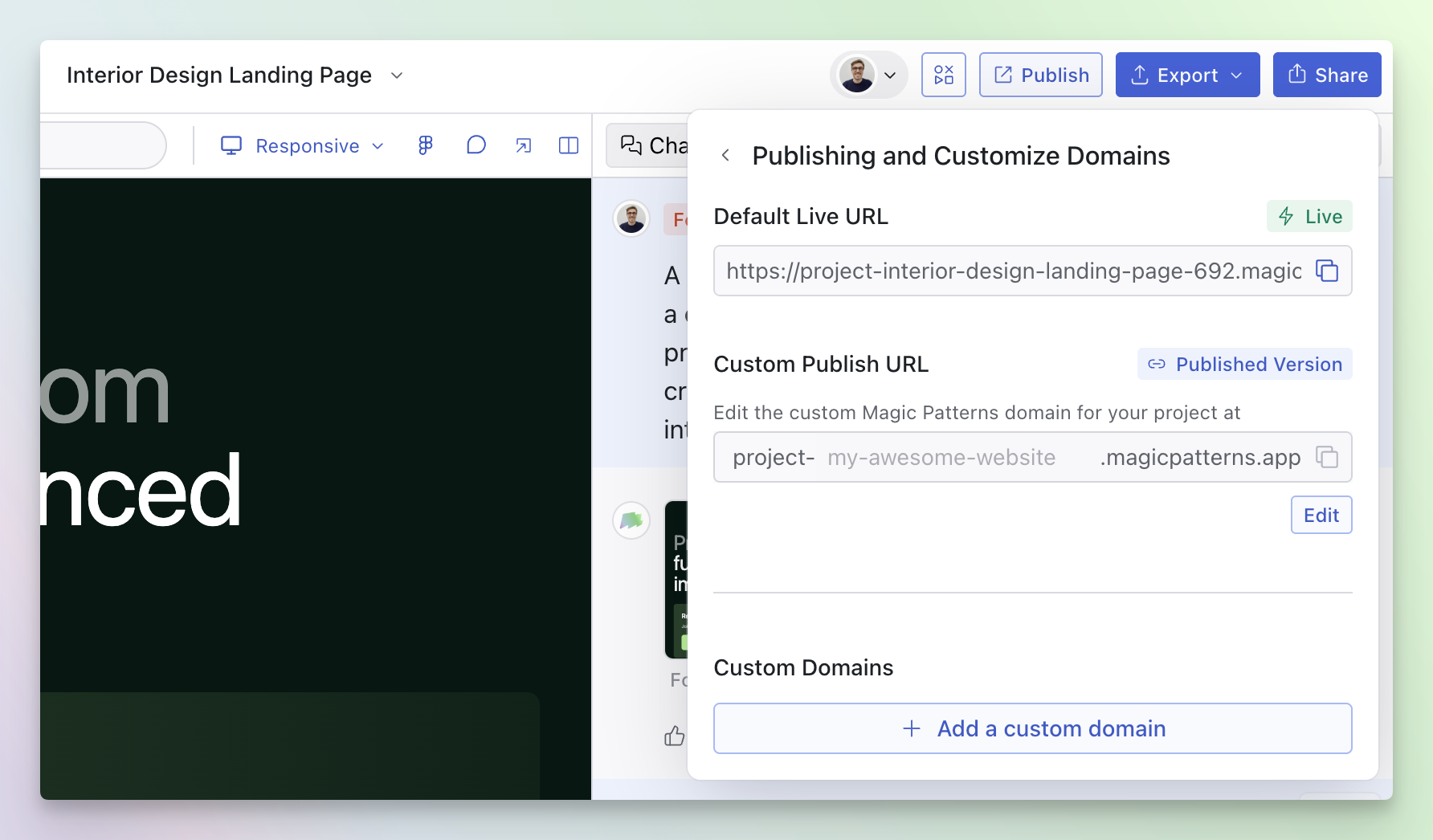
Copy the live link to share your published site, or set a custom website
address and connect your own domain. Read more about [using a custom publish
URL](/documentation/publishing/publish-url) or [hosting on a custom
domain](/documentation/get-started/custom-domain).
### The Default "Live" URL
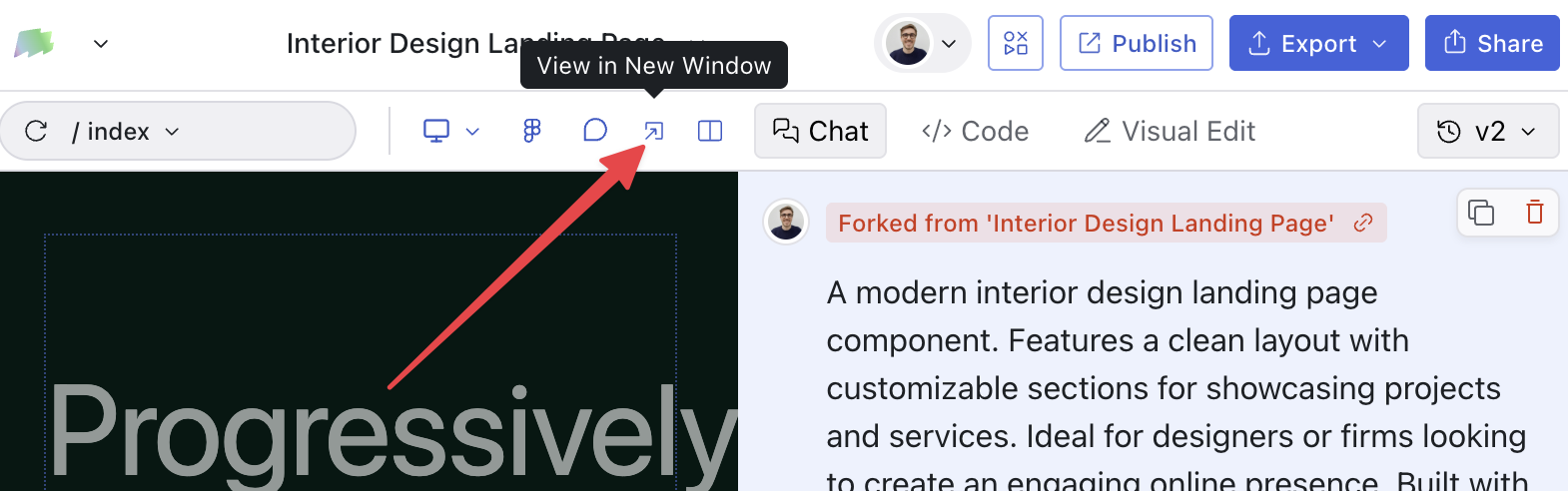
By default, every Magic Patterns design comes with a "live" URL. This is the URL that is always updated and does not include the Magic Patterns toolbar.
You can get to this link by either going to:
* [The Publish panel](/documentation/editor/sharing#publish)
* Clicking the "Open in new window" button in the editor navbar
## Live multiplayer
Once your teammates open the share link, you'll see their avatars in the editor toolbar and the chat thread, generations, and preview update for everyone in real time. On the [Canvas](/documentation/projects/getting-started) you'll also see live cursors and shared selections.
[Learn more about Live Multiplayer.](/documentation/collaboration/live-multiplayer)
## Collaborating on a Canvas
Read about sharing on the [Canvas](/documentation/projects/how-to-share) for more information.
## Video Guide
This topic is covered in our video lesson [Figma Imports](/documentation/guide/figma-imports).
 ## Publish
Use Publish when you want to control the version you are sharing. Publishing is often used in conjunction with [using a custom publish URL](/documentation/publishing/publish-url) or [hosting on a custom domain](/documentation/get-started/custom-domain).
## Publish
Use Publish when you want to control the version you are sharing. Publishing is often used in conjunction with [using a custom publish URL](/documentation/publishing/publish-url) or [hosting on a custom domain](/documentation/get-started/custom-domain).
 ## Live multiplayer
Once your teammates open the share link, you'll see their avatars in the editor toolbar and the chat thread, generations, and preview update for everyone in real time. On the [Canvas](/documentation/projects/getting-started) you'll also see live cursors and shared selections.
[Learn more about Live Multiplayer.](/documentation/collaboration/live-multiplayer)
## Collaborating on a Canvas
Read about sharing on the [Canvas](/documentation/projects/how-to-share) for more information.
## Video Guide
This topic is covered in our video lesson [Figma Imports](/documentation/guide/figma-imports).
## Live multiplayer
Once your teammates open the share link, you'll see their avatars in the editor toolbar and the chat thread, generations, and preview update for everyone in real time. On the [Canvas](/documentation/projects/getting-started) you'll also see live cursors and shared selections.
[Learn more about Live Multiplayer.](/documentation/collaboration/live-multiplayer)
## Collaborating on a Canvas
Read about sharing on the [Canvas](/documentation/projects/how-to-share) for more information.
## Video Guide
This topic is covered in our video lesson [Figma Imports](/documentation/guide/figma-imports).