> ## Documentation Index
> Fetch the complete documentation index at: https://magicpatterns.mintlify.site/docs/llms.txt
> Use this file to discover all available pages before exploring further.
# Overview of MCP
> Workflow to go roundtrip between design and code
MCP integration requires a paid plan. [Upgrade
here](https://www.magicpatterns.com/dashboard?dl=billing).
The Magic Patterns MCP ("Model Context Protocol") can help you bring Magic Patterns designs into other AI tools like Cursor, Claude Code, or directly in Claude.ai. It can also be used to import existing layouts and designs from your codebase into Magic Patterns.
The MCP is a standardized way for connecting AI agents, like Magic Patterns, to other tools.
## Connection Options
One-click setup directly in Claude.ai
Configure in Cursor, Claude Code, or other MCP clients
Authenticate with an API key instead of OAuth
***
## Official Claude Connector
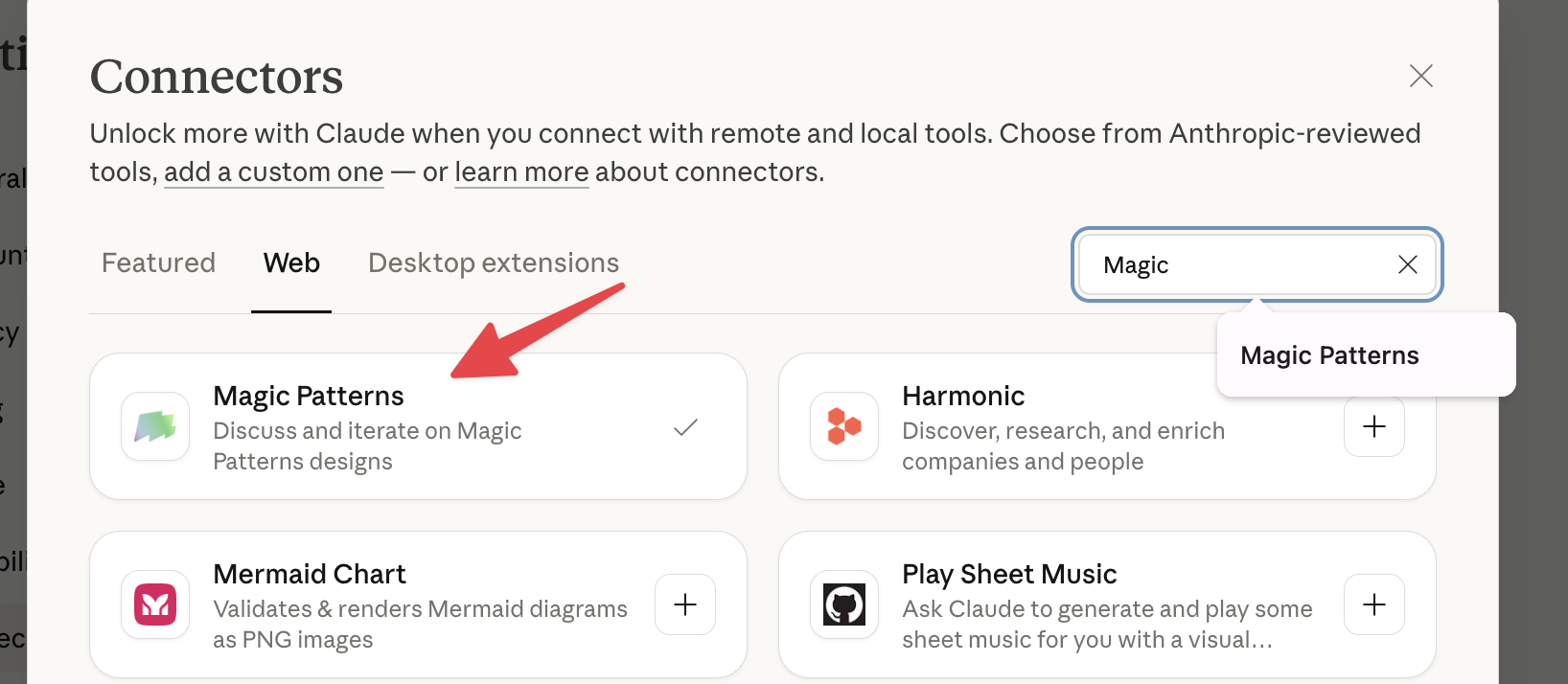
Magic Patterns is available as an official **Connector** directly in [Claude.ai](https://claude.ai/). This is the easiest way to get started - no configuration required.
In Claude.ai, click on the Connectors icon or navigate to your integrations settings.
Search for "Magic Patterns" in the available connectors and click to connect.
Complete the authorization flow, and you're ready to use Magic Patterns directly in Claude conversations.
***
## Custom MCP Setup
For tools like Cursor or Claude Code, you can configure the Magic Patterns MCP server manually.
For best results, also add the [Integration Skill](/documentation/exporting/integration-skill) to Cursor or Claude Code. It tells the agent to treat the design as a spec and adapt it to your codebase's components and conventions, rather than pasting the prototype verbatim.
Create a `.cursor/mcp.json` in your project for project-specific tools. [Cursor instructions here](https://cursor.com/docs/context/mcp#configuration-locations).
```json theme={null}
{
"mcpServers": {
"magic-patterns": {
"url": "https://mcp.magicpatterns.com/mcp"
}
}
}
```
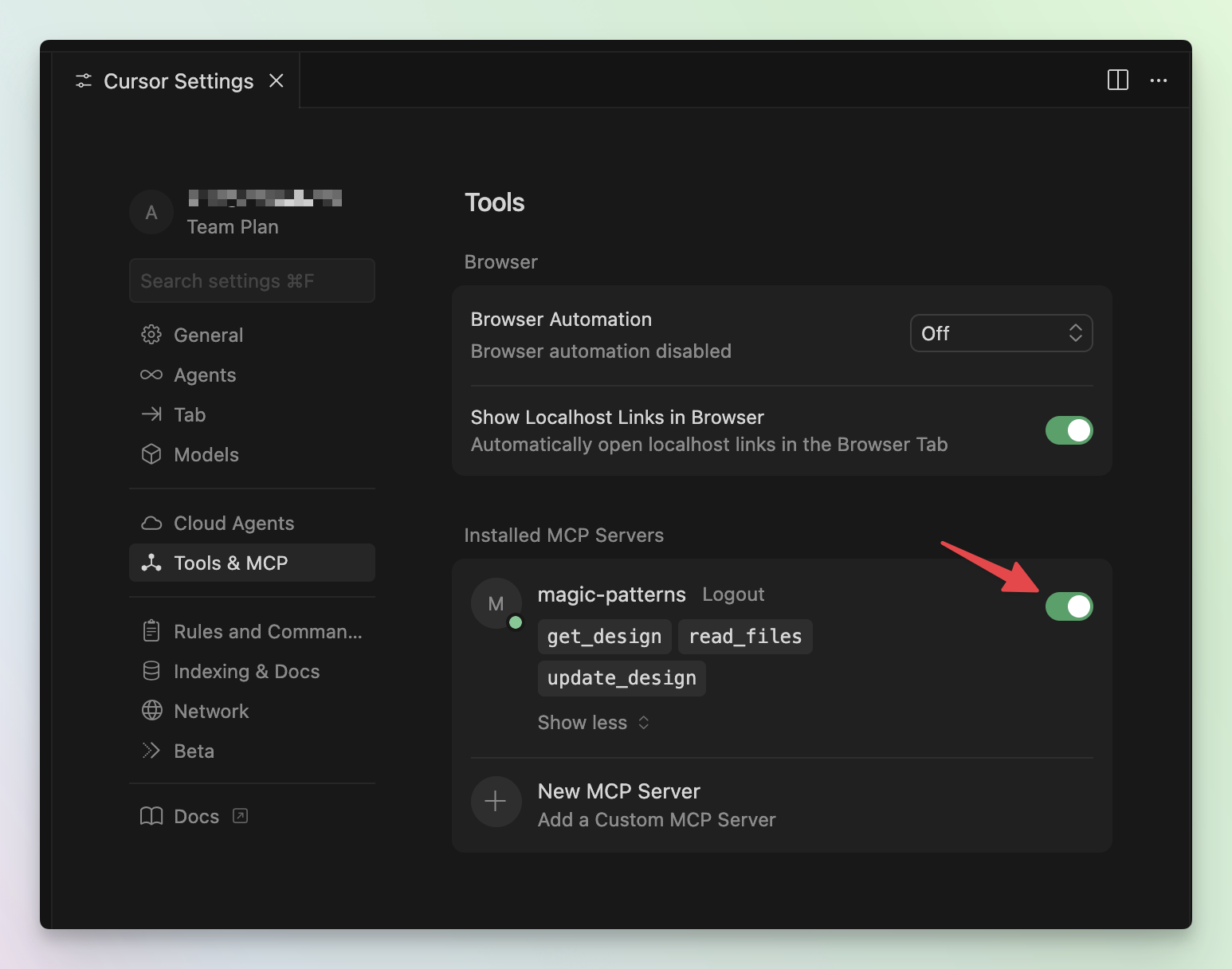
**IMPORTANT:** If Cursor browses the web instead of using the MCP tools, it means it's not working!
Ensure the MCP is actually turned on and not globally ignored. You can check this in Cursor's settings. Check "magic-patterns" to on!
Once connected, you can prompt Cursor to access a specific design. For example:
```
Integrate this design: https://www.magicpatterns.com/c/abcd into my project
```
### Cursor Troubleshooting
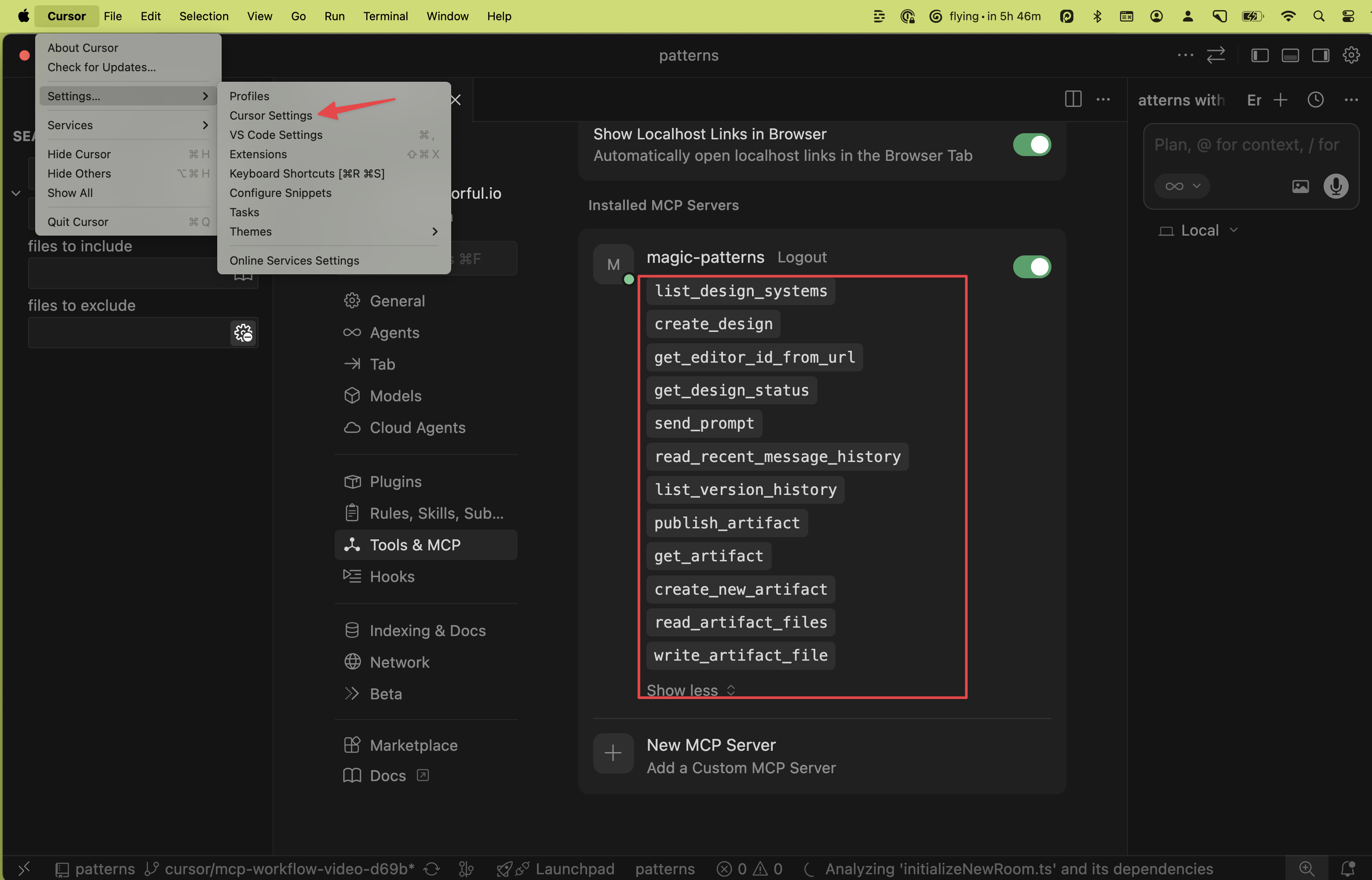
Ensure that all the Tools are enabled in Cursor's settings. Go to **Cursor >
Settings > Cursor Settings** > MCP & Tools
Run the following command to add the Magic Patterns MCP server:
```bash theme={null}
claude mcp add --transport http magic-patterns https://mcp.magicpatterns.com/mcp
```
Run `/mcp` inside Claude Code to trigger the OAuth authentication that enables the Magic Patterns Remote MCP Server.
Once connected, you can prompt Claude Code to access a specific design. For example:
```
Integrate this design: https://www.magicpatterns.com/c/abcd into my project
```
### Read-only mode
If you want to expose Magic Patterns to an AI client without granting permission to create, modify, or publish designs, point the client at the read-only endpoint `https://mcp.magicpatterns.com/mcp/readonly` instead of `https://mcp.magicpatterns.com/mcp`. The same OAuth flow and API keys work against both URLs.
Only the following tools are exposed on the read-only endpoint:
* `list_design_systems`
* `get_editor_id_from_url`
* `get_design_status`
* `read_recent_message_history`
* `list_version_history`
* `get_artifact`
* `read_artifact_files`
* `get_design_system`
* `read_design_system_files`
Destructive tools (`create_design`, `send_prompt`, `create_new_artifact`, `write_artifact_files`, `publish_artifact`, `create_design_system`, `write_design_system_files`, `publish_design_system`) are not registered on this endpoint, so the client cannot list or call them.
```json theme={null}
{
"mcpServers": {
"magic-patterns": {
"url": "https://mcp.magicpatterns.com/mcp/readonly"
}
}
}
```
```bash theme={null}
claude mcp add --transport http magic-patterns https://mcp.magicpatterns.com/mcp/readonly
```
***
## API Key Authentication
If you prefer not to use OAuth, you can authenticate MCP requests using a Magic Patterns API key. This is useful for programmatic access, custom integrations, or environments where OAuth is impractical.
The same API key works for the MCP server, the v3 REST API, and the legacy v2 API.
Open [Settings → API Keys](https://www.magicpatterns.com/settings/api-keys) and click **Create Key**. Copy the key immediately — you can only see it once.
Include the header `x-mp-api-key` with your API key on every request to the MCP server.
```bash theme={null}
curl -X POST https://api.magicpatterns.com/api/mcp/design-systems \
-H "Content-Type: application/json" \
-H "x-mp-api-key: mp_your_api_key_here"
```
You can also pass the `x-mp-agent-name` header to tag requests with your agent or integration name. This is optional but helps with attribution in the Magic Patterns UI.
```bash theme={null}
curl -X POST https://api.magicpatterns.com/api/mcp/design/create \
-H "Content-Type: application/json" \
-H "x-mp-api-key: mp_your_api_key_here" \
-H "x-mp-agent-name: my-custom-agent" \
-d '{"prompt": "A dashboard with a sidebar and chart"}'
```
API key authentication requires a paid plan. If your key is associated with an account that requires payment, requests will be rejected until the account is upgraded.
***
## Next Steps
Explore the available MCP tools and learn common workflows for
design-to-code and code-to-design.
A drop-in skill that teaches your AI editor to adapt a Magic Patterns
design into your codebase the right way.