> ## Documentation Index
> Fetch the complete documentation index at: https://magicpatterns.mintlify.site/docs/llms.txt
> Use this file to discover all available pages before exploring further.
# Creating your first screen
> Start from scratch or import an existing design
## From Scratch
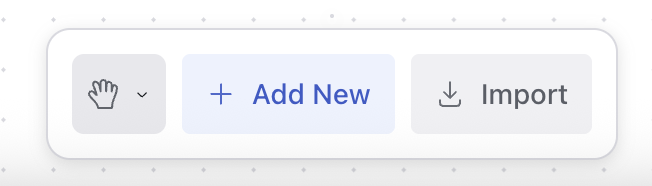 Check out our [prompting guide](/documentation/editor/how-to-prompt) for tips on how to write a good prompt or our [prompting templates](/documentation/projects/prompt-templates) for example prompts.
A new screen will be generated based on your prompt.
## From an existing non-Canvas design
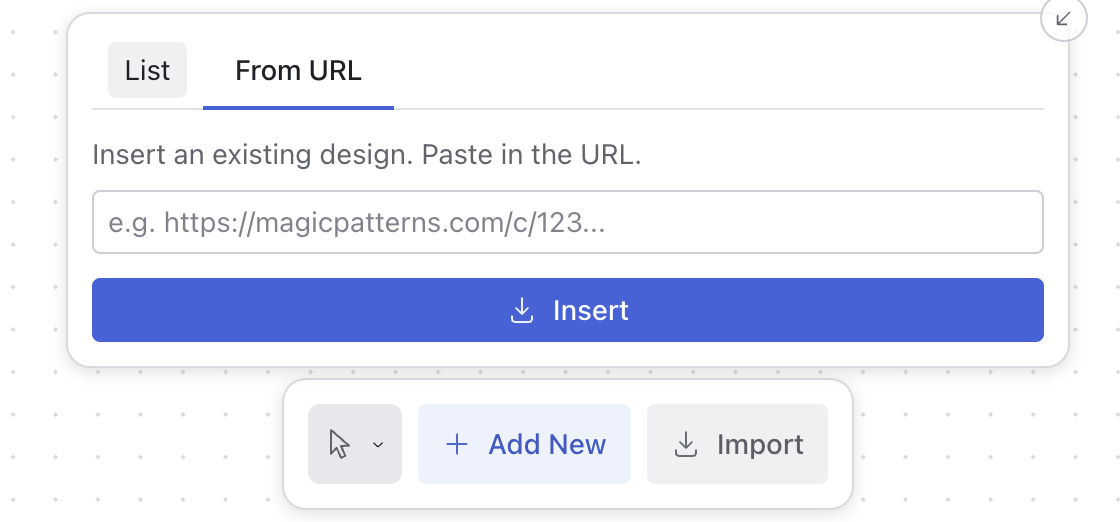
If you have an existing design in Magic Patterns, you can use the import feature to convert it into a Canvas design.
* **List**: Select any existing design directly from your list of saved projects.
* **From URL**: Paste the URL of any Magic Patterns design to import it into the canvas.
Check out our [prompting guide](/documentation/editor/how-to-prompt) for tips on how to write a good prompt or our [prompting templates](/documentation/projects/prompt-templates) for example prompts.
A new screen will be generated based on your prompt.
## From an existing non-Canvas design
If you have an existing design in Magic Patterns, you can use the import feature to convert it into a Canvas design.
* **List**: Select any existing design directly from your list of saved projects.
* **From URL**: Paste the URL of any Magic Patterns design to import it into the canvas.