> ## Documentation Index
> Fetch the complete documentation index at: https://magicpatterns.mintlify.site/docs/llms.txt
> Use this file to discover all available pages before exploring further.
# Custom Publish URL
> Publish your design to a custom Magic Patterns URL
Custom Publish URLs require a paid plan. [Upgrade
here](https://www.magicpatterns.com/dashboard?dl=billing).
## How It Works
By default, you are assigned a random website address hosted by Magic Patterns. But using the "Publish" button, you can assign a custom website address to your design.
For example, using our Custom Publish URL feature, if you want `my-portfolio` as your website address, your site will be live at `project-my-portfolio.magicpatterns.app`.
## How to Publish to a Custom URL
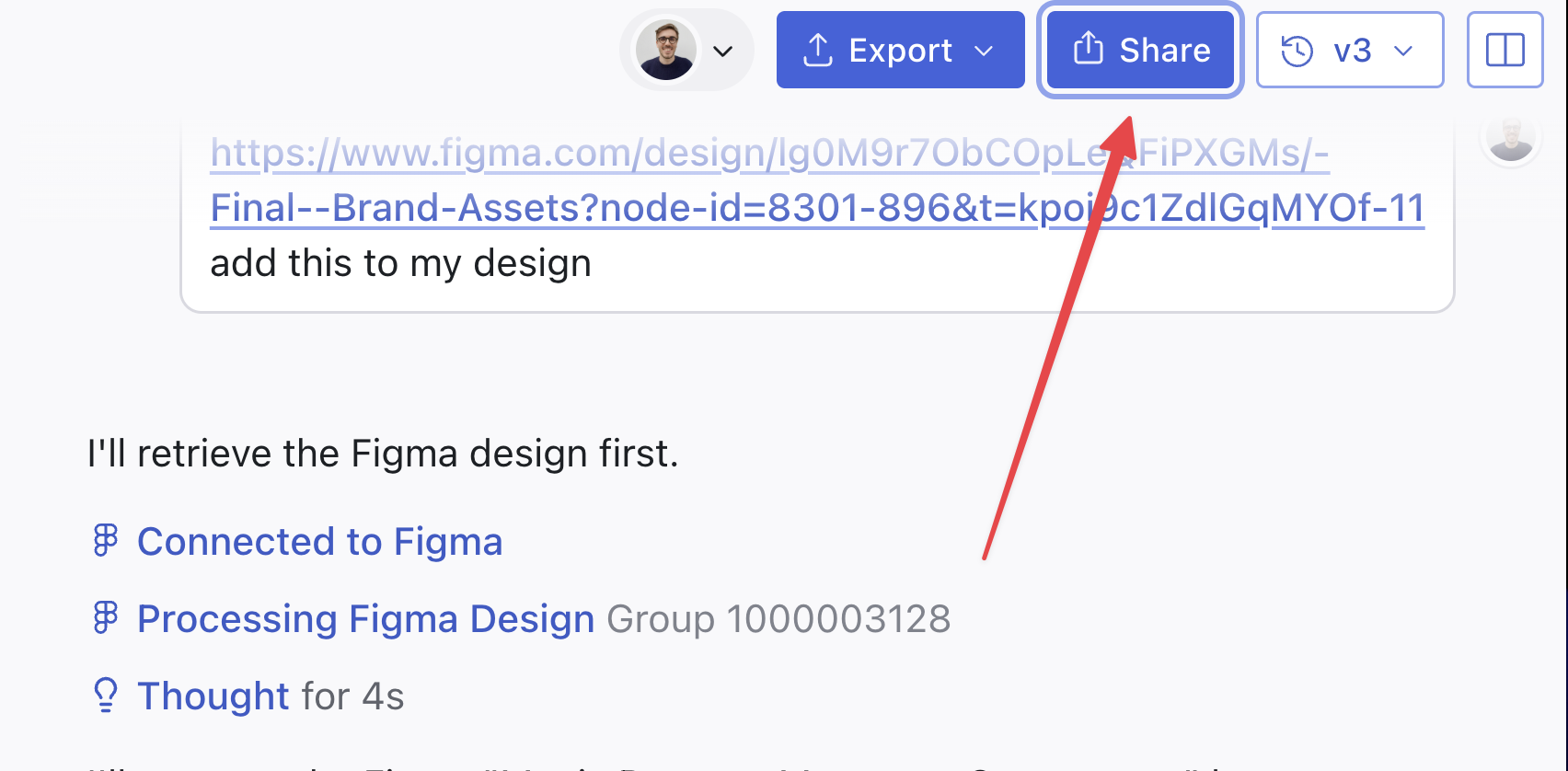
Click the Share button at the top of the editor.
 In the Publish modal, enter a name for your custom URL in the "Add Custom Publish URL" section.
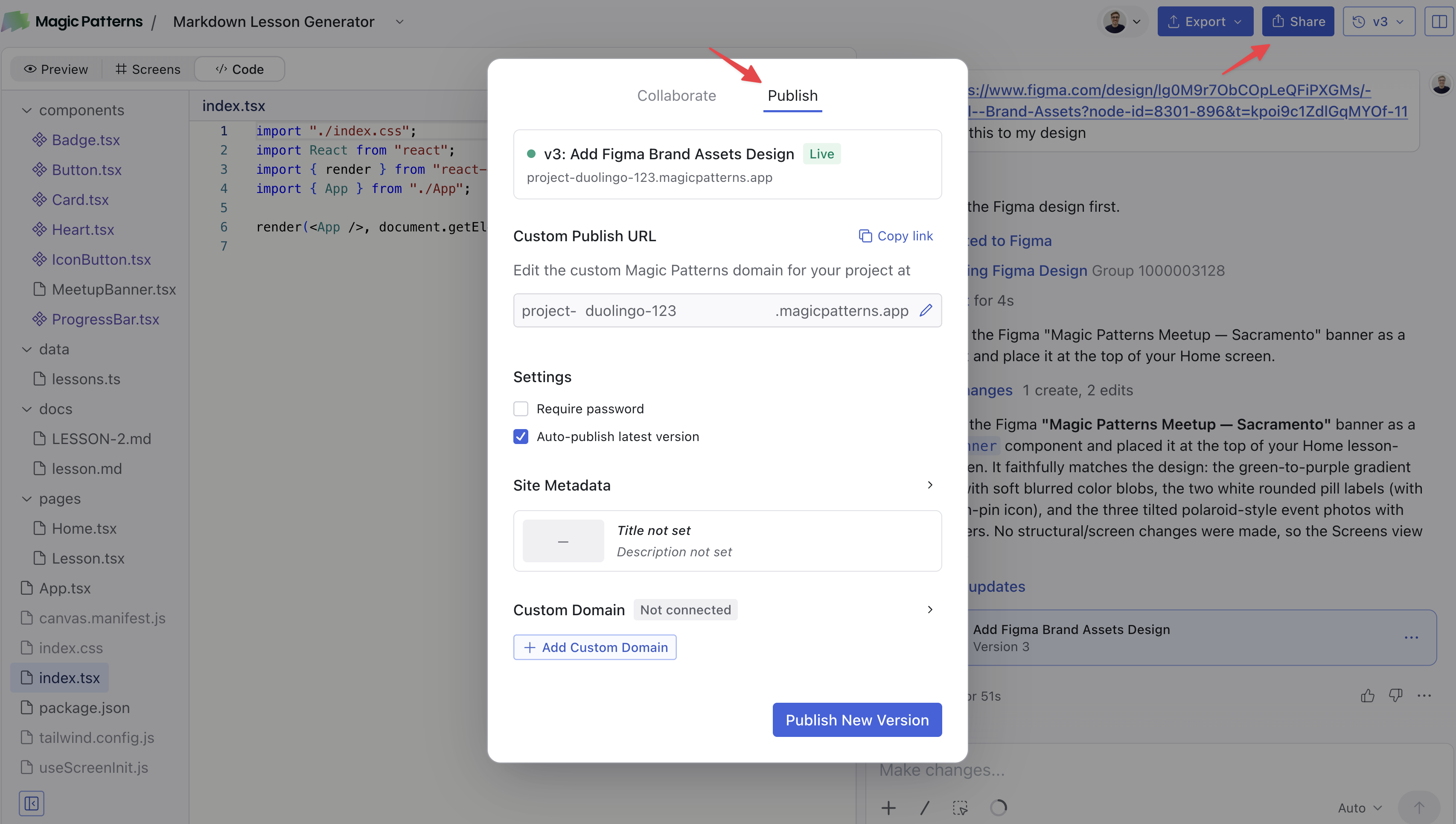 Your site will be live immediately. In the example screenshot, the URL is `project-mindfulnesscards.magicpatterns.app`
### Changing Your Website Address
You can change your website address at any time by going back to the Publish panel and entering a new one.
## Next Steps
Ready to use your own domain not on `*magicpatterns.app`? See [Host on a Custom Domain](/documentation/get-started/custom-domain) for instructions on connecting a domain you own.
Your site will be live immediately. In the example screenshot, the URL is `project-mindfulnesscards.magicpatterns.app`
### Changing Your Website Address
You can change your website address at any time by going back to the Publish panel and entering a new one.
## Next Steps
Ready to use your own domain not on `*magicpatterns.app`? See [Host on a Custom Domain](/documentation/get-started/custom-domain) for instructions on connecting a domain you own.